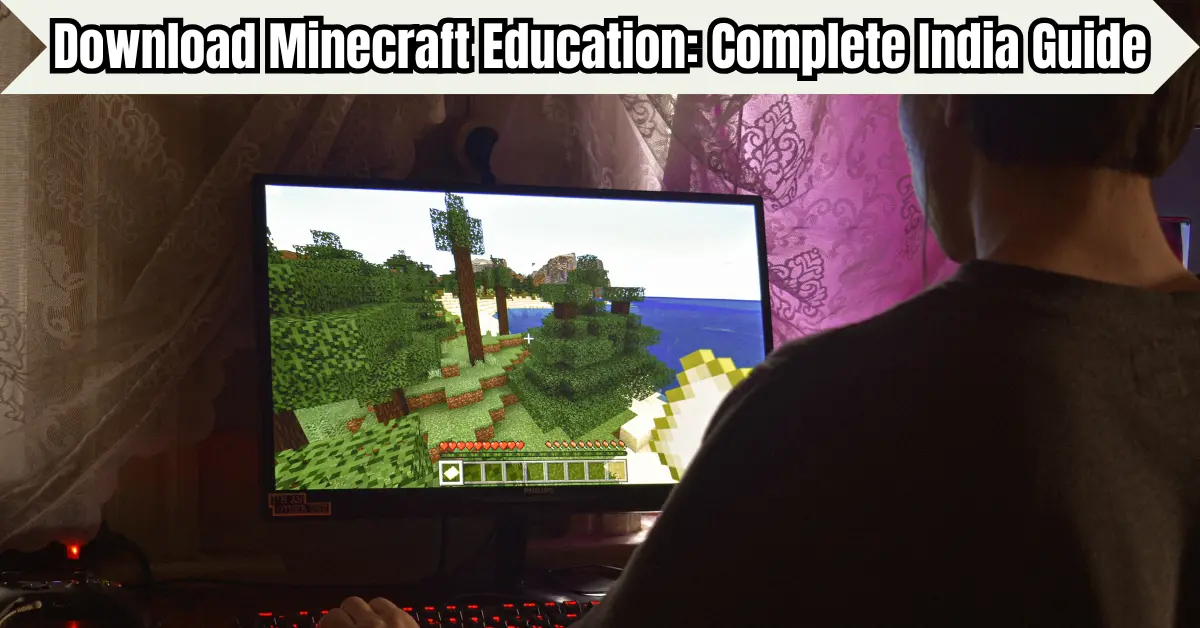

Download Minecraft Education to turn creative gameplay into an interactive learning experience. The platform allows students and teachers to explore subjects such as mathematics, science, computer programming, language arts, history, environmental studies and digital citizenship through block-based virtual worlds.
Minecraft Education can currently be installed on Windows computers, macOS devices, Chromebooks, Android phones and tablets, iPhones and iPads. Users can also explore selected demo lessons before purchasing or activating a full licence.
This guide explains how to download Minecraft Education in India, check device compatibility, install the application, sign in, access demo lessons and solve common installation problems. It also covers the main benefits and limitations for Indian schools, teachers, parents and students.
What Is Minecraft Education?
Minecraft Education is the learning-focused version of Minecraft designed for classrooms, educational programmes and home-supported learning.
Instead of concentrating only on open-world entertainment, it provides teaching tools, structured lessons, collaborative activities, assessment opportunities and coding features. Teachers can use Minecraft-style building environments to explain difficult topics through practical activities.
For example, students can:
- Build models of historical monuments
- Represent fractions using blocks
- Explore ecosystems and biodiversity
- Create sustainable cities
- Practise block-based or text-based coding
- Work together on classroom challenges
- Demonstrate their understanding through virtual projects
Minecraft Education includes lessons across computer science, mathematics, science, language arts, social studies, art and other subjects. Its official lesson library contains ready-to-use educational activities created for students of different ages.
Where Can You Download Minecraft Education Safely?
The safest place to download Minecraft Education is its official website or the official application store supported by your device.
Avoid unofficial APK websites, modified installers, cracked versions and file-sharing platforms. Unofficial files may contain malware, outdated software or changes that prevent school accounts from working correctly.
The official Minecraft Education download page provides options for:
- Windows
- macOS
- Chromebook
- Android
- iPhone
- iPad
The available version and installation method may change over time, so always check the official download page before installing the software. At the time of verification, the official page listed version 1.21.133, but users should confirm the current release directly before downloading.
Minecraft Education System Requirements
Minecraft Education does not require a premium gaming computer, but the device must meet its minimum software and hardware requirements.
Here is a practical overview of the officially listed requirements:
| Device | Minimum Operating System | Memory and Storage |
|---|---|---|
| Windows PC | Windows 10 or later | 2 GB RAM and at least 2 GB disk space |
| Mac | macOS Big Sur 11 or later | 2 GB RAM and at least 2 GB disk space |
| Chromebook | Chrome OS 83 or later | 2 GB RAM and at least 2 GB disk space |
| iPhone or iPad | iOS 11 or iPadOS 11 or later | At least 1 GB RAM |
| Android | A supported modern Android device | Requirements may vary by device |
For Windows, Mac and Chromebook, the officially listed minimum processor is an Intel Core i3-4150 or AMD A8-6600K, along with supported integrated or dedicated graphics.
Meeting the minimum requirements does not always guarantee the best classroom experience. A device with more RAM, sufficient free storage and a stable internet connection will generally perform better, especially during multiplayer lessons.
How to Download Minecraft Education on Windows
You can download Minecraft Education on Windows through the Microsoft Store or by using the official Windows installer.
Step 1: Check Your Windows Version
Open Settings, select System, and then open About. Confirm that the computer is running Windows 10 or a later supported version.
Also check that the device has:
- At least 2 GB of free storage
- A stable internet connection
- Permission to install applications
- Updated graphics drivers
- Access to the Microsoft Store, if using that method
Step 2: Visit the Official Download Page
Open the official Minecraft Education website and go to its download section. Select the Windows option.
The website may direct you to the Microsoft Store or provide a Windows installer. The installer is useful when the Microsoft Store is restricted or unavailable on a school-managed computer.
Step 3: Install the Application
For the Microsoft Store method:
- Open the Minecraft Education listing.
- Select Get or Install.
- Wait for the application to download.
- Open it from the Start menu.
For the installer method:
- Download the official installation file.
- Open the downloaded file.
- Allow installation when prompted.
- Follow the instructions displayed on the screen.
- Launch Minecraft Education after installation.
School computers may require an administrator password. Students should ask their teacher, school IT administrator or parent before making system-level changes.
How to Download Minecraft Education on a Mac
Mac users can download the application from the official Minecraft Education download page.
Installation Steps for macOS
- Confirm that the Mac is running macOS Big Sur 11 or later.
- Open the official Minecraft Education download page.
- Select the Mac download option.
- Download the installation package.
- Open the downloaded file.
- Move or install the application as instructed.
- Launch Minecraft Education from the Applications folder.
- Sign in with an eligible school or organisational account.
If macOS blocks the application, open System Settings, visit the privacy and security section, and review the blocked-app message. Only approve the application when it was downloaded from the official Minecraft Education website.
How to Download Minecraft Education on a Chromebook
Minecraft Education is available for supported Chromebooks and can be useful for remote, hybrid and classroom learning.
The Chromebook version includes access to educational resources, coding activities, tutorials and classroom assessment features.
Installation Steps for Chromebook
- Update the Chromebook to a supported Chrome OS version.
- Open the Google Play Store.
- Search for Minecraft Education.
- Check that the developer and application details are official.
- Select Install.
- Wait for the download to finish.
- Open the application from the Chromebook launcher.
- Sign in using the account provided by your school.
Some school-managed Chromebooks prevent students from installing applications. In that situation, the school administrator must approve or remotely deploy Minecraft Education.
How to Download Minecraft Education on Android
Minecraft Education is available for supported Android phones and tablets through Google Play.
It supports mobile learning, touchscreen controls, multiplayer activities and in-game coding.
Installation Steps for Android Devices
- Open the Google Play Store.
- Search for Minecraft Education.
- Confirm that you have selected the official application.
- Tap Install.
- Wait for the application to download.
- Open it from the home screen or application drawer.
- Choose a demo lesson or sign in with an eligible account.
Before downloading, connect to Wi-Fi when possible. This can reduce mobile-data usage and make the installation more reliable.
If the Play Store shows that the application is incompatible, update Android and the Play Store. When the message remains, the phone or tablet may not meet the current compatibility requirements.
How to Download Minecraft Education on iPhone or iPad
Minecraft Education is officially available through Apple’s App Store for compatible iPhones and iPads.
Installation Steps for iOS and iPadOS
- Open the App Store.
- Search for Minecraft Education.
- Review the application name and publisher.
- Tap Get.
- Use Face ID, Touch ID or an Apple ID password when required.
- Wait for installation to finish.
- Open the application.
- Sign in or select an available demo lesson.
Schools managing multiple iPads may deploy the application centrally instead of asking every student to install it individually.
Can You Download Minecraft Education for Free?
Minecraft Education is free to download, but downloading the application does not automatically provide unlimited access to every feature.
The application offers demo lessons and may provide trial access for eligible users. Full classroom access usually requires an appropriate licence or an account connected to a participating educational organisation.
Free Demo Lessons
Demo lessons can generally be opened without signing in. They provide a limited preview of classroom gameplay and can be played more than once.
However, important features may be unavailable in demo mode, including:
- Saving worlds
- Joining or hosting multiplayer sessions
- Accessing the complete lesson experience
- Managing full classroom activities
- Using certain account-based features
The official guidance states that demo lessons do not require an account, while world saving and multiplayer are disabled.
Free Trial Access
A free trial may require an eligible Microsoft Entra ID account, such as a Microsoft 365 Education or supported organisational account. A personal Microsoft 365 subscription does not necessarily provide Minecraft Education trial access.
Students should ask their school whether Minecraft Education is already included in its Microsoft education subscription before purchasing anything separately.
How to Sign In After Installation
After you download Minecraft Education, open the application and select the sign-in option.
Enter the email address and password provided by your school or organisation. This may be the same account used for Microsoft Teams, Outlook, OneDrive or other school-managed Microsoft services.
A successful sign-in depends on three things:
- The account is active.
- The organisation has appropriate Minecraft Education access.
- The administrator has assigned the required licence or permission.
If the account is not recognised, do not repeatedly change the password without checking with the school. The institution may not have activated Minecraft Education for that account.
How Indian Schools Can Use Minecraft Education
Indian schools can use Minecraft Education to support activity-based learning, interdisciplinary projects and collaborative classroom tasks.
For example, a teacher could ask students to build a water-conservation model showing rainwater harvesting, groundwater recharge and efficient irrigation. Students could then explain their design and connect it with environmental science topics.
Other practical classroom ideas include:
Mathematics
Students can create block models to understand area, volume, ratios, coordinates, symmetry and geometric patterns.
Science
Teachers can design activities involving ecosystems, renewable energy, the water cycle, chemistry concepts or simple machines.
Computer Science
Learners can practise computational thinking, sequencing, debugging and programming through visual or text-based coding activities.
Social Studies
Students can reconstruct historical locations, explore civic planning or create models showing different geographical regions.
Language Learning
Teachers can assign storytelling worlds, vocabulary challenges, virtual role-play or descriptive writing based on student-built environments.
Minecraft Education works best when the activity has a clear learning objective. Simply allowing unstructured gameplay may not produce the same educational value as a guided lesson with instructions, reflection and assessment.
Explore More Minecraft Education Resources
After you download and install the platform, read our complete guide to Minecraft Education Edition to understand its learning features, classroom tools and educational benefits. Teachers can explore Minecraft coding lessons for students to introduce programming through engaging activities. You can also compare Minecraft Education vs regular Minecraft before choosing the right version. For more learning options, explore our guide to the best educational games for students and discover practical digital learning tools for teachers that can support interactive classroom teaching.
Benefits of Minecraft Education
Minecraft Education can make abstract topics easier to understand by turning them into visible and interactive experiences.
Its main benefits include:
- Active learning: Students create, test and improve ideas instead of only reading about them.
- Collaboration: Multiplayer projects encourage communication and task sharing.
- Creativity: Open building tools allow students to demonstrate knowledge in different ways.
- Problem-solving: Challenges require planning, experimentation and revision.
- Coding practice: Learners can explore programming concepts through guided activities.
- Cross-subject use: One environment can support science, mathematics, language, history and art.
- Ready-made lessons: Teachers can use or adapt existing educational worlds.
The platform is particularly valuable when teachers connect each activity with measurable learning outcomes.
Limitations to Consider
Minecraft Education is useful, but it is not a complete replacement for textbooks, teachers, experiments or other learning resources.
Possible limitations include:
- It requires a compatible device.
- Some activities need a reliable internet connection.
- Full access may require organisational licensing.
- Teachers need time to prepare and manage lessons.
- Students may focus on building rather than the learning objective.
- Older devices may experience lag.
- Multiplayer activities require clear classroom rules.
- Some schools may restrict application installation.
Schools should begin with a small lesson, assess student response and expand its use gradually.
Common Download and Installation Problems
The Application Is Not Installing
Check the operating-system version, free storage and internet connection. Restart the device and try again through the official store or download page.
The Device Shows “Not Compatible”
The hardware or operating system may not meet current requirements. Update the device software and check the official compatibility information.
The School Account Cannot Sign In
Confirm that the email address is correct and that the school has activated access. Contact the school administrator rather than creating an unrelated personal account.
The Download Is Very Slow
Use a stable Wi-Fi connection, pause other downloads and restart the router when appropriate. School networks may also limit large downloads.
Multiplayer Is Not Working
All participants should use compatible versions and eligible accounts. School network settings, permissions or firewall rules may also affect multiplayer access.
Tips for a Smooth Learning Experience
Before beginning a full lesson, teachers should test Minecraft Education on the same type of device students will use.
A useful preparation process is:
- Install and update the application.
- Test the school account.
- Open the selected world.
- Check controls and accessibility settings.
- Confirm network performance.
- Explain the learning goal.
- Set rules for communication and building.
- Save backup copies where supported.
- Include a final reflection or assessment.
Students should also learn the basic controls before starting a graded activity. A brief practice session can prevent technical confusion from taking time away from the lesson.
Common Mistakes to Avoid
Do not download modified APK files simply because they claim to provide free premium access. Such files may be unsafe or may stop working after updates.
Other common mistakes include:
- Confusing Minecraft Education with regular Minecraft
- Using a personal account when a school account is required
- Ignoring minimum system requirements
- Installing an outdated application version
- Starting multiplayer without testing the network
- Forgetting that demo mode has feature limitations
- Using Minecraft without a specific educational objective
- Allowing students to share account passwords
Using the official application, approved accounts and structured lesson plans provides a safer and more reliable experience.
Frequently Asked Questions
Is Minecraft Education available in India?
Yes, users in India can download Minecraft Education on supported Windows, Mac, Chromebook, Android, iPhone and iPad devices. Access to all features depends on account and licensing eligibility. Students should first ask their school whether Minecraft Education is included in its Microsoft education services.
Can students use Minecraft Education without a school account?
Students can explore available demo lessons without an account, but demo mode has restrictions. For example, saving worlds and using multiplayer may be disabled. A supported school or organisational account is generally required for trial access and the complete classroom experience.
Is Minecraft Education the same as regular Minecraft?
No. Regular Minecraft is primarily a commercial sandbox game, while Minecraft Education includes classroom-focused tools, educational lessons, coding activities and teacher-support features. The two versions share a similar block-based environment, but their access systems, content and intended uses are different.
Can Minecraft Education run on a low-end computer?
It may run on a basic computer that meets the official minimum requirements, including the supported operating system, processor, graphics capability, RAM and storage. However, devices that only meet the minimum may experience slower loading or reduced performance, particularly during complex or multiplayer activities.
Why can’t I sign in after downloading Minecraft Education?
The most common reason is that the account does not have an active Minecraft Education licence or trial entitlement. Check the email and password, then ask your school’s Microsoft 365 or IT administrator to confirm that access has been assigned to your account.
Conclusion
To download Minecraft Education safely, use the official Minecraft Education website, Microsoft Store, Google Play Store or Apple App Store, depending on your device. Check the system requirements first, install the correct version and use an eligible school account when full access is required.
Indian students and teachers can use the platform for coding, science, mathematics, social studies, language learning and creative classroom projects. Demo lessons are a practical starting point, but they include limitations such as restricted saving and multiplayer access.